Pages

Early to bed and early to rise - Till you get enough money to do otherwise.

Being rich doesnt always mean having money, It means being happy with the amount you have.

It takes a brain to earn money, but a heart to give it..

Until you are happy with who you are, you will never be happy with what you have..

After the game, the king and the pawn go into the same box..

Tuesday, March 6, 2012

Related Post Widget for your blog Optimized Version

Related Post Widget for Your Blog (Optimized Version)


Related Post widget is a very useful widget that displays thumbnail preview of posts having same labels or categories at the bottom of each blog page. I told this is a very useful widget because this widget can increase your page views by encouraging visitors to discover more post and by keeping them engaged with your blog. By the way we have only few related post widgets create so far and most demotic one is Linkwithin widget. Also this widget will not let your old post to run to waste.


Normally if you install this gadget to your blog it will shows related post also in your home page after each post. I think this is an infelicitous view for visitors. So here I have percent you a solution for it. After you install this gadget you can see the different. So please kindly follow these steps. 


1. Go to Linkwithin.

2. Fill up the form appears in the page.
  •     Email address: your email address
  •     Blog Link: url of the blog
  •     Platform: Select relevant platform from the list
  •     Width: this will adjust the amount of thumbnail stories. If your post widthis less than 500px select 3 from the list. I prefer 4 is the most suitable
    for a blog.
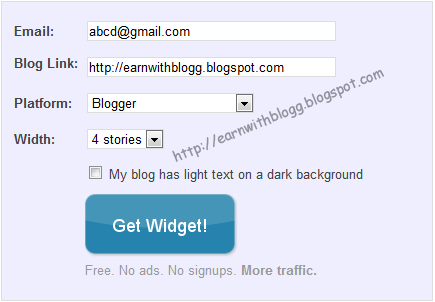

3.  After filling the form data hit the Get Widget button and you will redirect to page like below.


4. Click Install Widget Link and logging to your blogger account.


this is the time to change the LinkWithin code to display thumbnails if you want to display only after the every post.


5. Change the Title (LinkWithin) to Related Post.


6. Then click Edit Template : link


7.Replace the above code with below.


<b:includable id='main'><b:if cond='data:blog.pageType == &quot;item&quot;'><data:content/></b:if></b:includable> 


8. Then click
Edit Content: link


9. Add the below given code to just above the code given in the Edit Content code box (don't delete the original code)


<script>linkwithin_text='Related Posts:'</script>

10. Finally click on ADD WIDGET button and you will taken to blogger Page Elements page. Drag and drop the Related Post widget to the bottom of the Post body.


11. Click save button and see the different.

I know you will really love this change.


Tags:
How to add Related Post widget, Linkwithin, Related post, Related pose widget

Monday, February 20, 2012

Search Engine Optimization Tips

Search Engine Optimization Tips (SEO Tips)


No one can tell exactly how your web site appears at the top of search engine results and what is the search engines needed to do it. But there are some techniques that can use to optimize your site to get a great result.

Here I’m going to tell you some of techniques that I have personally got great result with my SEO campaign. Search Engine Optimization is something that is frequently changing but if you learn at least the basic techniques you won’t go wrong.

Basically Search Engine Optimization means how your website gains a top order placement of Search engine results.

I will use my blog as an example while I going through this techniques.


Domains:

Most of bloggers say having your Keywords in URL of your site is important. My opinion is it is not a most important factor in SEO campaign but certainly it has some kind of value. Don’t worry it definitely would not hurt to go ahead. See my main Key words are online Money earning and blogging, I have earn and blog in my URL


Meta Tags:

This is a one of main fragment of on-page SEO campaign. Meta tags are placed between Head section of your site and it gives the main description/ idea about your blog or site to the search Engines. I have already given a big description about this category in a previous posts so I’m not going to present a big story here.

Key words :

I think this is the most important part. Selecting a good keyword is like half done. Always use a popular keyword. That will give you a great help. If you select a most searching keyword there is a big possibility to gain your site to the top of search result. See in my blog I use keyword like earn money, emoney, SEO.


Internal Linking:

Linking is method what is use to connect another page, another site or a place via a text or an image in the present page. This is also a traffic building method. If some one clicks on one link then it takes that user to another page. You can use this method to link your each web page or blog post between every post. This is a very valuable tip. If some one wants to build a page ranked blog he must use this tip. See in my every post I have included links to some words.

Wednesday, February 1, 2012

Zooming Effect Optimized Version


How to add a Zoom effect to your blog Images on mouse move

Part II (Optimized Version)


In previous post I show you a really amazing zooming effect that can use to impress your blog visitors, also I told you that I’ll show you another inconceivable zooming effect. This is also like the previous one. But i think this one is cuter than previous one.

Lets see how it looks like

Here is a preview


Zoom, Zoom effect,blog zooming, image zooming


How to add this effect

Ok here is how to do it

Simply Search for “]]></b:skin>” on Edit Html  and place the below mentioned code just above it


.bloggers2 img{
-webkit-transform:scale(0.8);
-moz-transform:scale(0.8);
-o-transform:scale(0.8);
-webkit-transition-duration: 0.5s;
-moz-transition-duration: 0.5s;
-o-transition-duration: 0.5s;
opacity: 1;
margin: 0 10px 5px 0;
}
.bloggers2 img:hover{
-webkit-transform:scale(0.9);
-moz-transform:scale(0.9);
-o-transform:scale(0.9);
opacity: 1;
}


Tags: How to add zoom, Zoom effect, zoom effect for blog, Image zooming, Picture zooming, Image zooming for blog

Share

Twitter Delicious Facebook Digg Stumbleupon Favorites More